Moya App SASSA SRD Status Check

If you’re out of mobile data and need to check your SASSA SRD grant status, the Moya App offers a data-free solution. You can do it with the Moya App now.
You do not need airtime or mobile data to use the Moya App, but you do need a mobile network signal.
Don’t know how to use the Moya App for SASSA services? Worry not, here is the complete and simple guide.
How to Check SASSA Status Using the Moya App in 2025?
Below is a simple, step-by-step guide on how to check the SASSA grant application status on the Moya App.
Step 1: Download the Moya App
- Android Users: Go to the Google Play Store, search for the Moya App, and tap Download.
- iPhone Users: Head to the Apple App Store, type Moya App, and tap Get.
Step 2: Open the Moya App
Once the app is downloaded and installed, open it by tapping the Moya App icon on your home screen.
Step 3: Device Compatibility
The Moya App works on most modern Android and iOS smartphones.
Step 4: Navigate to the Discover Tab
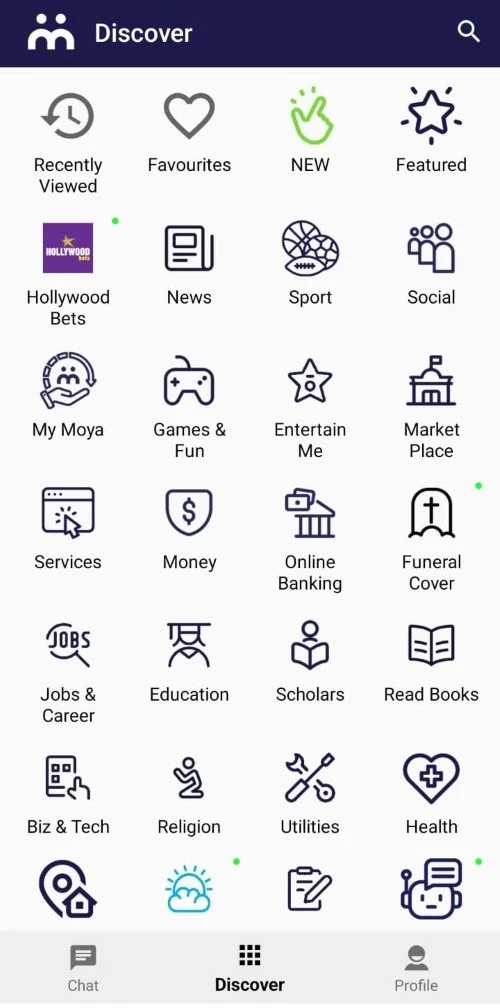
On the home screen of the app, look for the “Discover” option, usually located in the menu or center of the screen. Tap it to proceed.
Step 5: Locate the SRD Option
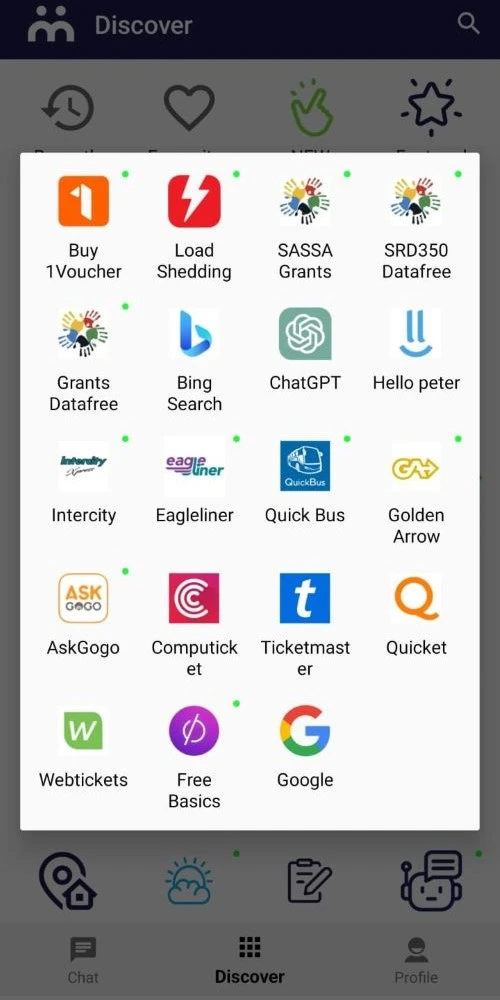
After tapping Discover, scroll through the options and look for SRD (Social Relief of Distress). This is the section dedicated to checking your SRD R370 grant status.
Step 6: Access the Secure Status Check Window
Once you tap on SRD, the app will open a secure window to access your status. This window ensures that your personal information is protected.
Step 7: Enter Your Information
In the secure window, you will be prompted to enter:
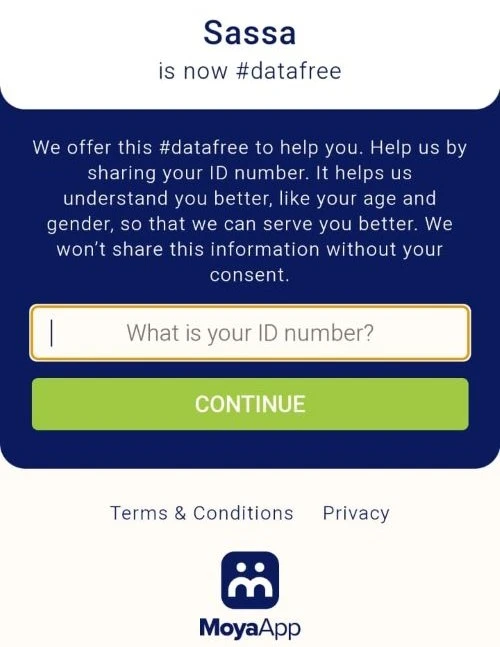
- Your South African ID number (This is required to identify your application).
- Your mobile phone number (The number you used when applying for the SRD grant).
Make sure to enter this information correctly to avoid errors in retrieving your status.
Step 8: View Your SASSA Application Status
After entering your details, click the Check Status button. The app will retrieve your latest available SASSA application status in real time, and you’ll be able to see whether your application is approved, pending, declined, or failed.
Step 9: Data-Free Access (Zero-Rated)
The Moya App works on zero-rated data, which means you don’t need airtime or mobile data. As long as you have a mobile network signal, you can check your SASSA status for free.
Can You Check Your SASSA Balance on the Moya App?
Users of the Moya App can also check the SASSA balance status on the Moya App. Here is the guide:
The Moya App may provide access to official SASSA balance or payment-related services when they are available. In these cases, users are redirected to secure SASSA pages within the app.
Availability can vary depending on SASSA system updates and the type of grant.
How to Apply for SASSA SRD Grant Using the Moya App?
Clients can use the Moya App to apply for the SASSA SRD R370 grant as well. The guide is mentioned below.
Launch the Moya App
Open the Moya App on your smartphone. If you don’t have the app installed, you can download it from the Google Play Store or Apple App Store.
Navigate to the ‘Discover’ Section
Once the app is open, look for the “Discover” icon on the home screen. Tap on it to proceed to the next step.
Select the SRD Grant Option
In the menu that appears, scroll through the available options and click on the “SRD” option. This will direct you to a new window.
Secure Application Form
You will be redirected to a secure SASSA webpage with end-to-end encryption. The Moya App does not store your information and only provides data-free access to the official SASSA SRD application portal.
Fill Out the Application Form
Complete the SRD grant application form by providing the following required details:
- Full Name
- Surname
- Date of Birth
- Address
- Employment Status
- Bank Statement (if applicable)
- South African ID Number
- Special Permit Number (if applicable)
Submit Your Application
After filling in all the required information, carefully review your details and click on the Submit button to send your application. You will receive a confirmation notification once your application has been successfully submitted.


